VentSim 1.5
VentSim is a fully functioning, high fidelity, physiologically faithful mechanical ventilator simulator.
Download
16.69 MB
1downloads
1this week
FreeCommercial
0reviews
Screenshots


About VentSim
VentSim is a fully functioning, high fidelity, physiologically faithful mechanical ventilator simulator. It was developed by Dr. Roger Stedman for iOS using the Swift programming language. Its purpose is an educational tool for critical care doctors, nurses, therapists, and anaesthetists – essentially anyone that has an interest in the provision of safe, effective care of the mechanically ventilated patient.
VentSim uses a mathematical model of the human respiratory system (volumes, resistance and compliance) which are well established models published in the literature [link]. These have been codified with an interface developed which allows you to manipulate parameters to simulate different patient scenarios (everything from a neonate through to an adult with severe COPD and emphysema).
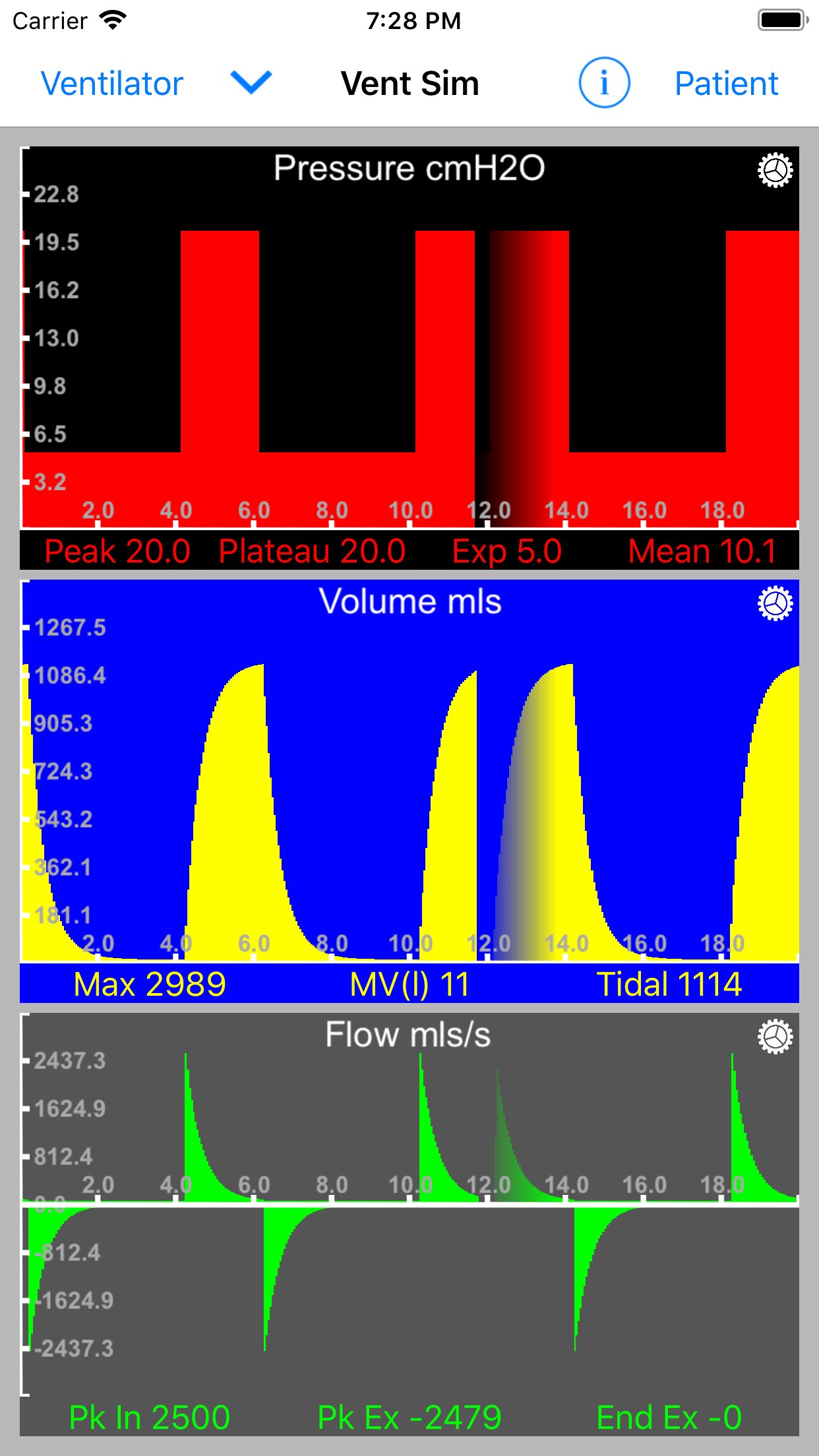
VentSim allows you to apply ventilator settings to your respiratory system model and then generates pressure, volume and flow signals that are displayed on your iOS device.
Using VentSim
On launch VentSim takes you straight into the simulator view – this is your central navigation point for the app.
Set up your simulated patient
Tap the ‘Patient’ button on the right side of the navigator bar. This brings up the ‘Patient Settings’ view:
The controls will slide in from the right, allowing you to still see some of the simulator view as you make adjustments.
Select your type of patient - and then adjust weight and relative lung volume size. You will see calculated lung volumes.
Select linear or dynamic compliance
If linear is selected adjust the ‘Compliance Slider’ (mls/cmH2O).
Alternatively - explore the dynamic compliance model and try different compliance models.
Adjust the Time constant, this will adjust airway resistance according to the size and compliance of your patient.
Return to the simulator view by tapping the right arrow in the navigator bar.
Adjust your ventilator settings
Select the ‘Ventilator’ button to the left of the navigator bar. This brings up the ‘Ventilator Settings’ view:
Select your ventilator rate (bpm) and I:E ratio using the sliders. You have a choice of three ventilator modes; Pressure Control, Volume Control and Flow Control. You are able to adjust appropriate input values for each of these (Inspiratory pressure, tidal volume or inspiratory flow) as well as apply PEEP and in volume control mode add an end inspiratory pause.
Return to the simulator view to view the impact your settings have had on your patients respiratory parameters.
Optimise the simulator view
If you are finding that due to screen size information is hidden (as is the case with the iPhone SE) try turning your device on its side into landscape mode.
The simulator view in landscape mode on an iPhone SE
Each simulator graph view has a gear icon in the top right hand corner, tap this to bring up the view settings panel. This allows you to change the background color, plot color, speed of animation, animation type (default is the wrap fade mode) and plot style (line or solid).
Graph Plot View settings popover
You will notice that as you change your settings the graph plots will automatically re-scale to an optimum screen fit. The axis labels will adjust accordingly. The panel data is updated at the end of each respiratory cycle.
Other Features
The ‘i’ (information) button on the navigator bar opens a mini-browser which navigates automatically to this page.
The down pointing chevron button on the navigator opens a menu with which to access other features of the simulator which allows you to switch on and off each individual view and also add in the spirometer loop view and also the compliance view.
Have fun!
Please feedback to:
ventsim@rogerstedman.com
ventsim@rogerstedman.com
License: Commercial
VentSim uses a mathematical model of the human respiratory system (volumes, resistance and compliance) which are well established models published in the literature [link]. These have been codified with an interface developed which allows you to manipulate parameters to simulate different patient scenarios (everything from a neonate through to an adult with severe COPD and emphysema).
VentSim allows you to apply ventilator settings to your respiratory system model and then generates pressure, volume and flow signals that are displayed on your iOS device.
Using VentSim
On launch VentSim takes you straight into the simulator view – this is your central navigation point for the app.
Set up your simulated patient
Tap the ‘Patient’ button on the right side of the navigator bar. This brings up the ‘Patient Settings’ view:
The controls will slide in from the right, allowing you to still see some of the simulator view as you make adjustments.
Select your type of patient - and then adjust weight and relative lung volume size. You will see calculated lung volumes.
Select linear or dynamic compliance
If linear is selected adjust the ‘Compliance Slider’ (mls/cmH2O).
Alternatively - explore the dynamic compliance model and try different compliance models.
Adjust the Time constant, this will adjust airway resistance according to the size and compliance of your patient.
Return to the simulator view by tapping the right arrow in the navigator bar.
Adjust your ventilator settings
Select the ‘Ventilator’ button to the left of the navigator bar. This brings up the ‘Ventilator Settings’ view:
Select your ventilator rate (bpm) and I:E ratio using the sliders. You have a choice of three ventilator modes; Pressure Control, Volume Control and Flow Control. You are able to adjust appropriate input values for each of these (Inspiratory pressure, tidal volume or inspiratory flow) as well as apply PEEP and in volume control mode add an end inspiratory pause.
Return to the simulator view to view the impact your settings have had on your patients respiratory parameters.
Optimise the simulator view
If you are finding that due to screen size information is hidden (as is the case with the iPhone SE) try turning your device on its side into landscape mode.
The simulator view in landscape mode on an iPhone SE
Each simulator graph view has a gear icon in the top right hand corner, tap this to bring up the view settings panel. This allows you to change the background color, plot color, speed of animation, animation type (default is the wrap fade mode) and plot style (line or solid).
Graph Plot View settings popover
You will notice that as you change your settings the graph plots will automatically re-scale to an optimum screen fit. The axis labels will adjust accordingly. The panel data is updated at the end of each respiratory cycle.
Other Features
The ‘i’ (information) button on the navigator bar opens a mini-browser which navigates automatically to this page.
The down pointing chevron button on the navigator opens a menu with which to access other features of the simulator which allows you to switch on and off each individual view and also add in the spirometer loop view and also the compliance view.
Have fun!
Please feedback to:
ventsim@rogerstedman.com
ventsim@rogerstedman.com
License: Commercial
| Release info | New Release on Feb 25, 2019 |
|---|---|
| Listing data | App Store |
Reviews
No reviews yet. Be the first to review VentSim.
Used VentSim? Tell other visitors what you thought.
Log in to write a reviewOther products by this publisher
- "No Distractions" for YouTube 4.10 ----
- #Bible 11.5 "Incredible App - My sister shared this app with me a few weeks ago and it is truly incredible.
- % Percentage Calculator Pro 1.41 This is the Pro version of % Percentage Calculator.
- (beat) for iOS 0.5.8 An elegant Fountain screenwriting app, created by a screenwriter for screenwriters.
- (Deep) HIARCS Chess Explorer 1.14 Chess database, analysis and game playing program
Most viewed iOS Health & Fitness
-
1
 Cal AI 26.42.0
HOW TO USE CAL AI:
Cal AI 26.42.0
HOW TO USE CAL AI:
-
2
 AllTrails 26.10.11
Whether you hike, bike, run, or walk, AllTrails is your companion and guide to the outdoors.
AllTrails 26.10.11
Whether you hike, bike, run, or walk, AllTrails is your companion and guide to the outdoors.
-
3
 I am 7.6.0
How many negative thoughts have been repeating in your mind?
I am 7.6.0
How many negative thoughts have been repeating in your mind?
-
4
 Periodic Timer + 4.8
Keep track of time without being distracted by the device!
Periodic Timer + 4.8
Keep track of time without being distracted by the device!
-
5
 Horse Anatomy 4.2
Explore the anatomy of the horse in 3D space.
Horse Anatomy 4.2
Explore the anatomy of the horse in 3D space.
-
6
 HealthFit 12.16.3
Turn your Apple Watch into a complete training platform.
HealthFit 12.16.3
Turn your Apple Watch into a complete training platform.
-
7
 FaceVital 1.1.1
Understand your wellness in a smarter way with FaceVital: Health Monitor.
FaceVital 1.1.1
Understand your wellness in a smarter way with FaceVital: Health Monitor.
-
8
 iCardiac 3.5.6
Listen to Your Wellness Data Like Never Before
iCardiac 3.5.6
Listen to Your Wellness Data Like Never Before
-
9
 2026 Long Beach Marathon 3.2.2
Long Beach Marathon app is for race day tracking to receive turn-by-turn instructions and for your friends and family to track your progress in real-time.
2026 Long Beach Marathon 3.2.2
Long Beach Marathon app is for race day tracking to receive turn-by-turn instructions and for your friends and family to track your progress in real-time.
-
10
 Woods Lamp Lite 1.0
A Wood’s Lamp is an Ultra-Violet (UV) light used to detect fluorescence in the skin or hair .
Woods Lamp Lite 1.0
A Wood’s Lamp is an Ultra-Violet (UV) light used to detect fluorescence in the skin or hair .
Most downloaded iOS Health & Fitness
-
1
 HealthPatch 1.0.1
Take Full Control of Your Apple Health Workout Data
HealthPatch 1.0.1
Take Full Control of Your Apple Health Workout Data
-
2
 Stromno 1.2
Stromno app allows you easily broadcast your heart rate data from Apple Watch and show it on live stream.
Stromno 1.2
Stromno app allows you easily broadcast your heart rate data from Apple Watch and show it on live stream.
-
3
AllTrails 26.10.11
Whether you hike, bike, run, or walk, AllTrails is your companion and guide to the outdoors.
-
4
 My Pain Diary 3.5.8
Heads up! There's a new and improved version of this app named "My Pain Diary: GOLD EDITION".
My Pain Diary 3.5.8
Heads up! There's a new and improved version of this app named "My Pain Diary: GOLD EDITION".
-
5
Cal AI 26.42.0
HOW TO USE CAL AI:
-
6
2026 Long Beach Marathon 3.2.2
Long Beach Marathon app is for race day tracking to receive turn-by-turn instructions and for your friends and family to track your progress in real-time.
-
7
 Telehealth by SimplePractice 4.2.2
Attend your appointment without leaving your home or office, or car, or private outdoor spot.
Telehealth by SimplePractice 4.2.2
Attend your appointment without leaving your home or office, or car, or private outdoor spot.
-
8
Woods Lamp Lite 1.0
A Wood’s Lamp is an Ultra-Violet (UV) light used to detect fluorescence in the skin or hair .
-
9
 Cardiogram 3.5
Track your heart in real time, right from your wrist.
Cardiogram 3.5
Track your heart in real time, right from your wrist.
-
10
FaceVital 1.1.1
Understand your wellness in a smarter way with FaceVital: Health Monitor.